
Create My Own Mission
Selecting the device and mission settings
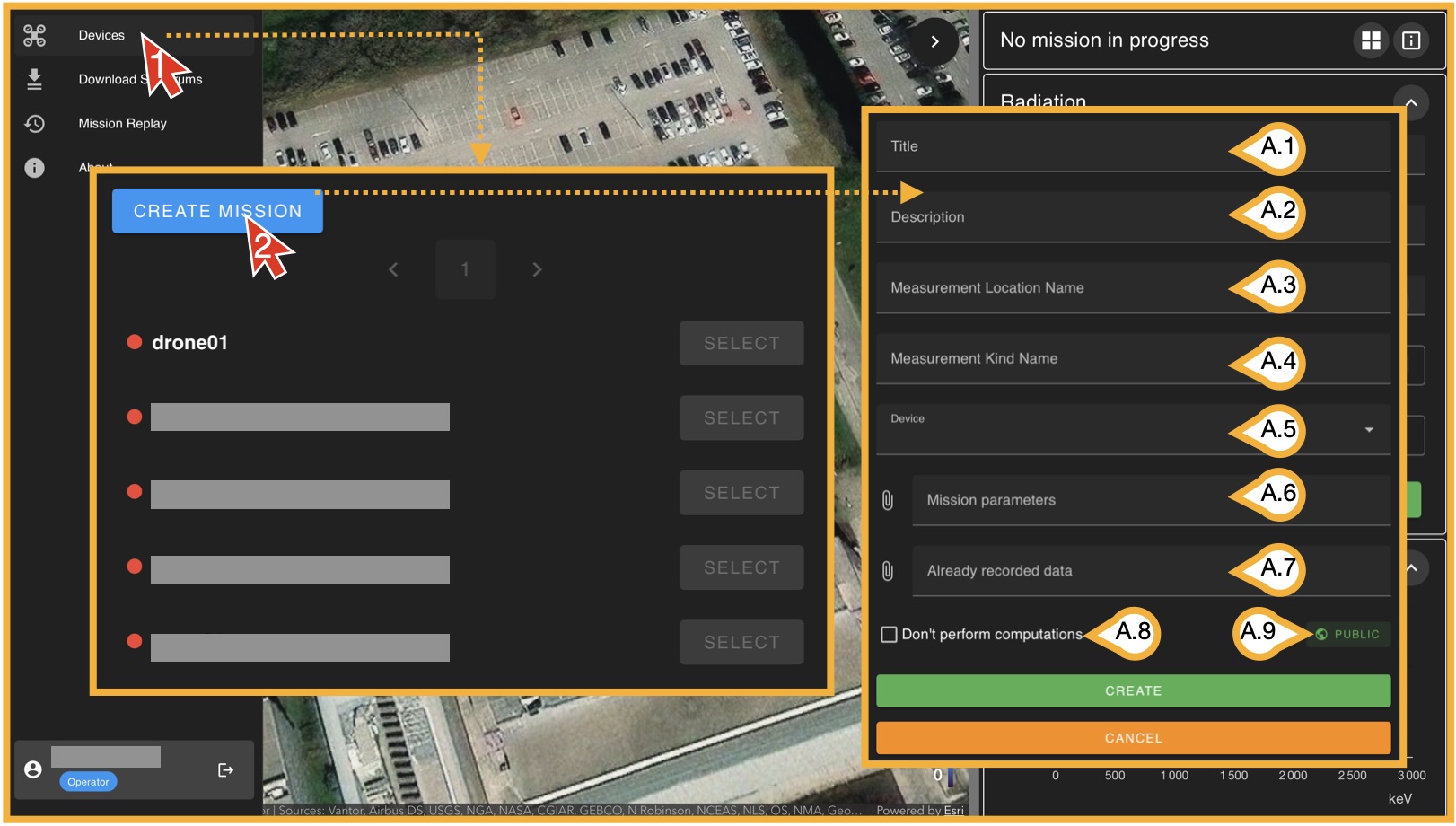
To start a mission, click on Devices and then on Create Mission. A new window will open with several input fields that define the mission.
- (A.1) Title: The name that will be displayed for this mission in the database.
- (A.2) Description: A general description of the mission.
- (A.3) Measurement Location: The name of geographic location or area where the measurement is being performed.
- (A.4) Measurement Kind: The type of measurement (for example, test, calibration, operational, etc.).
- (A.5) Device: Select one of the available online devices. Only devices showing three green status icons can be used.
- (A.6) Mission Parameters: Configuration parameters for the mission. These are explained in detail later in this section.
- (A.7) Already Recorded Data: Previously recorded data associated with this mission. (To be defined)
Once all fields are completed, click on Create. You will then enter an environment that is very similar to the mission replay view, but now operating in live mission mode. This view includes two additional panels that were not covered in the previous section and are specific to mission execution.